# Live edit - How to add video

Reference to [How to edit your website](https://help.microweber.com/user-guide/live-edit-how-to-edit-you-site)

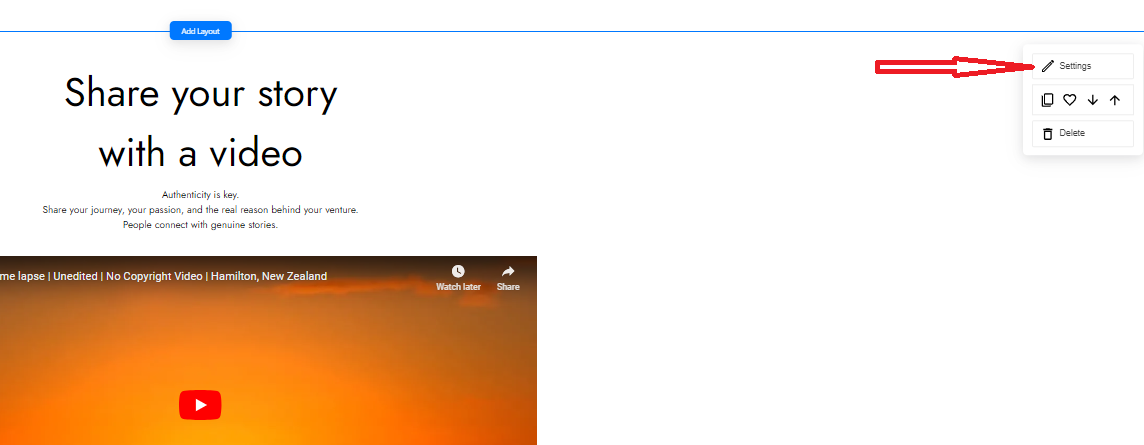
• A new window will open showing the layout of your newly made website, search for a layout or bar and click on “**Settings**”.

<figure><img src="https://1981302401-files.gitbook.io/~/files/v0/b/gitbook-x-prod.appspot.com/o/spaces%2Fyz8FiPTUs5koUyant2Jj%2Fuploads%2FtB7csPktVkDviEuKRoGh%2FSettings%20Layout%201.png?alt=media&#x26;token=b10cff24-6698-4df3-bf42-de0c521bfe60" alt=""><figcaption></figcaption></figure>

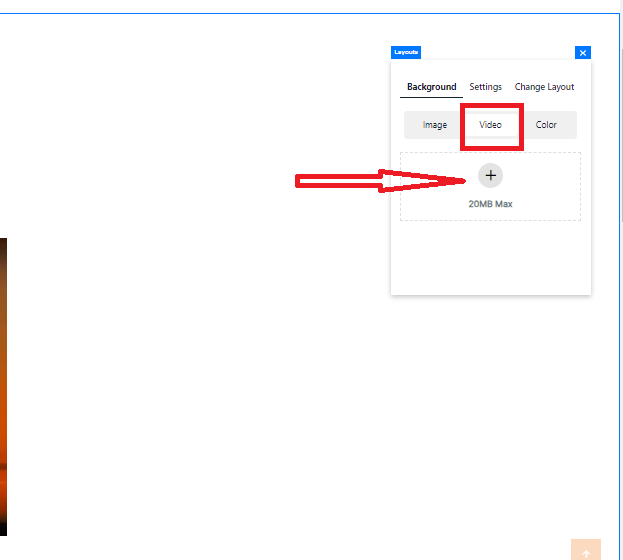
• You shall be able to add video now by choosing “**Video**”.
<figure><img src="https://1981302401-files.gitbook.io/~/files/v0/b/gitbook-x-prod.appspot.com/o/spaces%2Fyz8FiPTUs5koUyant2Jj%2Fuploads%2FohaRjJ6wil54QKBJBsYB%2FAdd%20video%202.png?alt=media&#x26;token=9be12f69-e597-475b-a146-499e0c27297e" alt=""><figcaption></figcaption></figure>

<figure><img src="https://1981302401-files.gitbook.io/~/files/v0/b/gitbook-x-prod.appspot.com/o/spaces%2Fyz8FiPTUs5koUyant2Jj%2Fuploads%2F4FBHsFiKiGgtTVo6GI9b%2FAdd%20videos%203.png?alt=media&#x26;token=7006eb88-b3f5-4416-b827-c6e7ef9e4353" alt=""><figcaption></figcaption></figure>